
Log Into Axx AI Voice
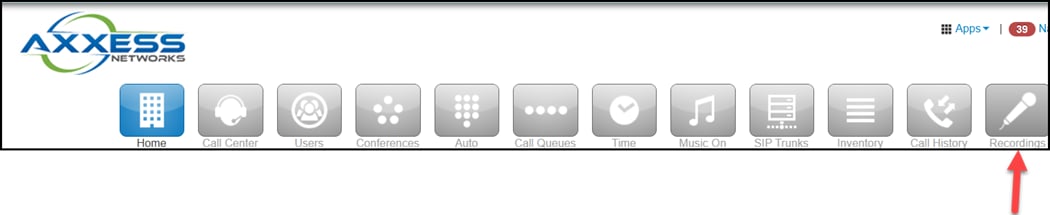
From the Manager Portal, click Recording.
Axx AI Voice Main Menu
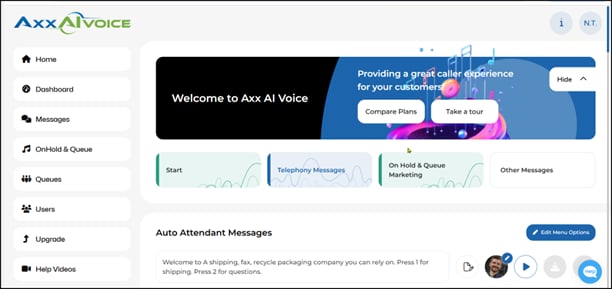
Let Axx AI Voice Learn About Your Business
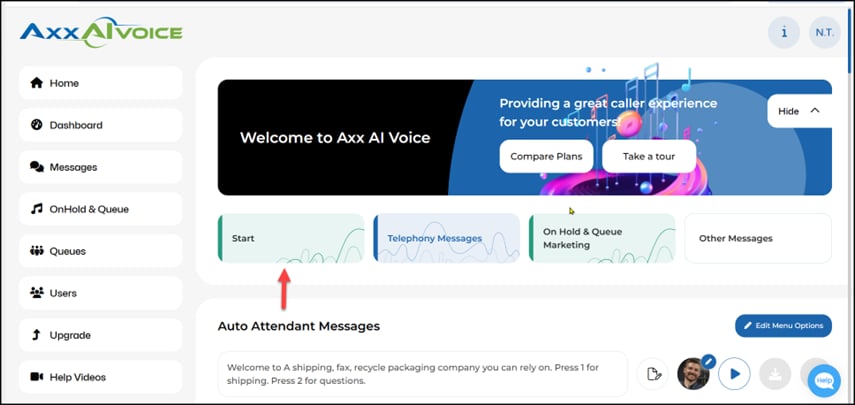
From Main Menu, click Start.
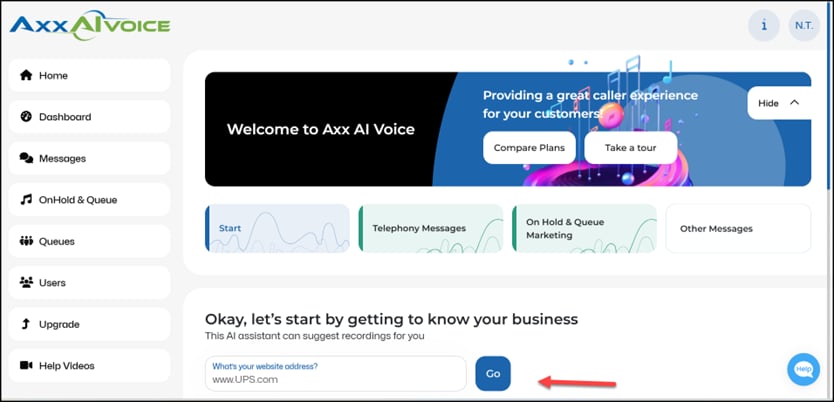
Enter your website address and click go
Note
If you do not have a website, select the I donʼt have a website checkbox. You will be prompted to enter details about your company manually.
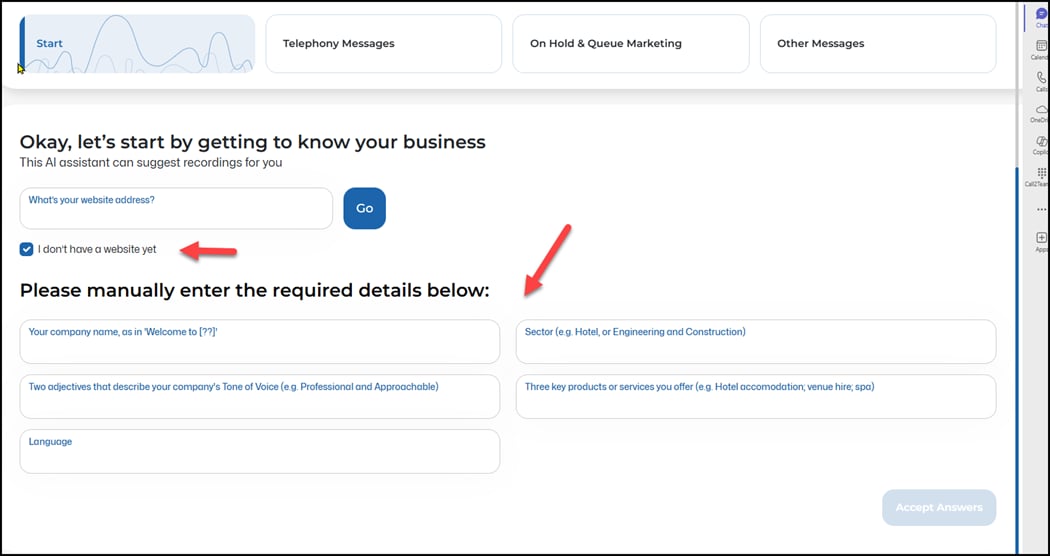
If Website is Entered
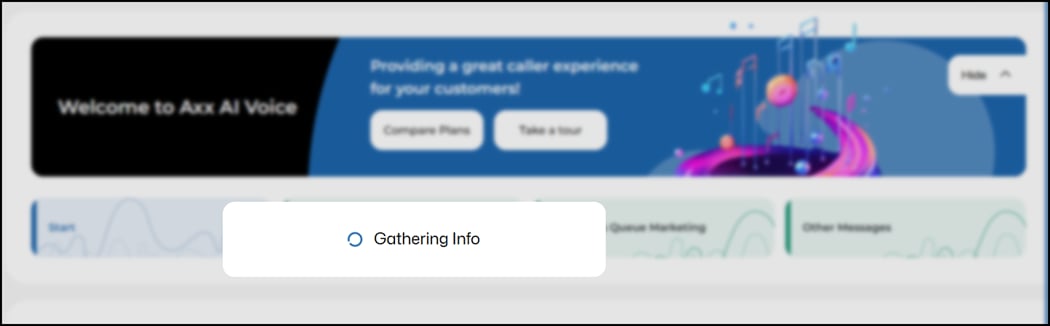
If Website is entered, system will gather information about your business
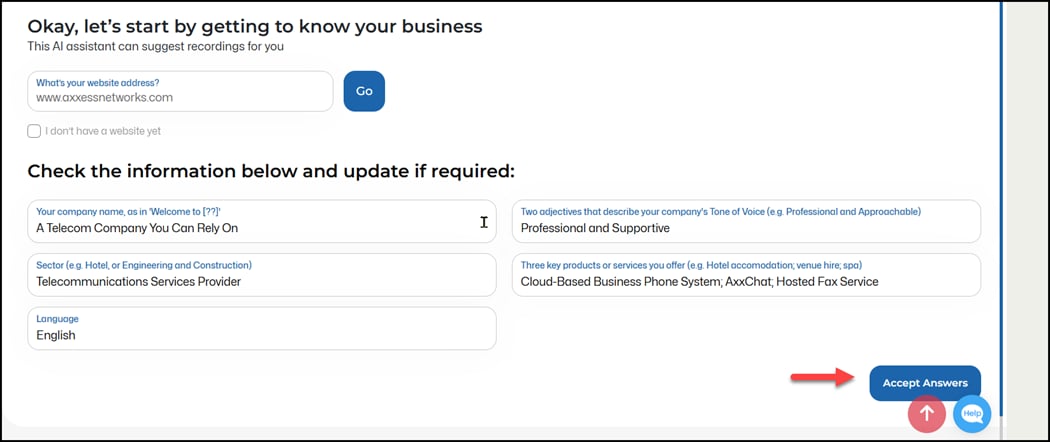
Review information.
Edit information if needed. Accept Answers.
How to Choose An AI Voice
Preview recommended Voice or Change Voice.
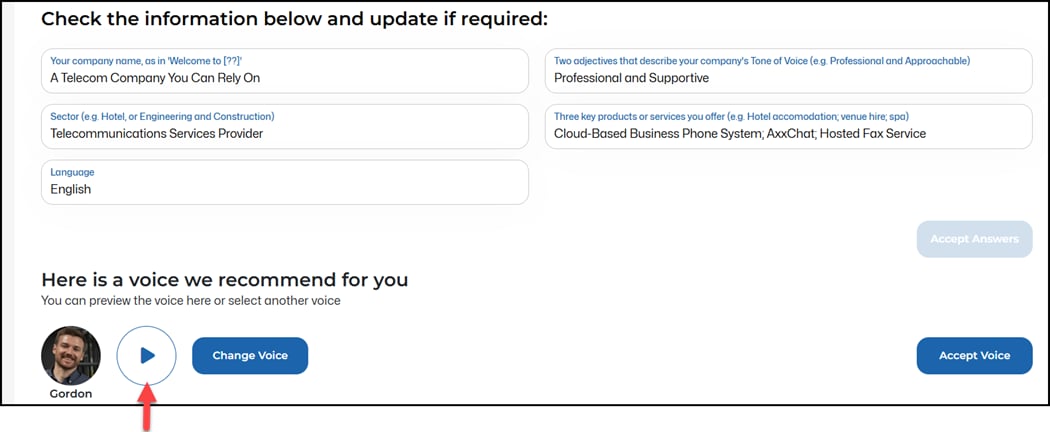
Select new voice.
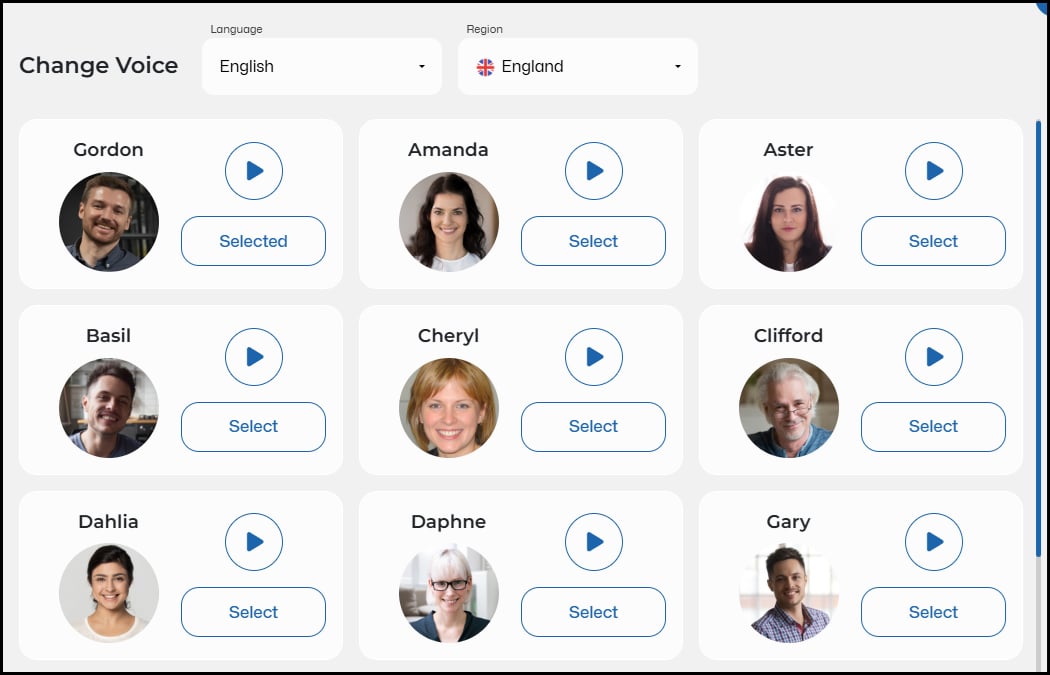
Accept new voice.

Auto Attendant Message
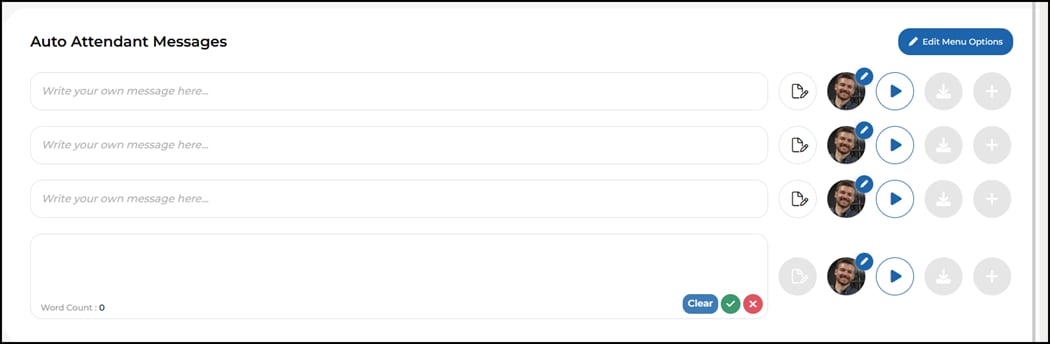
Type Auto Attendant Message or Choose from AI Generated Messages.
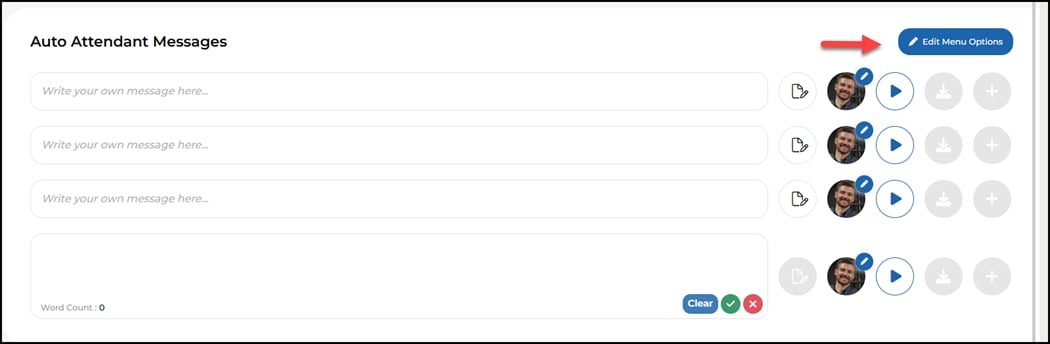
How to Edit Menu Options
Press Edit Menu Options.
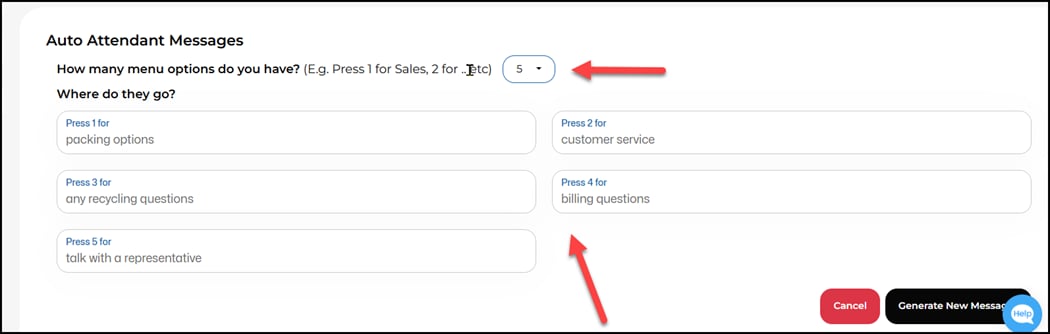
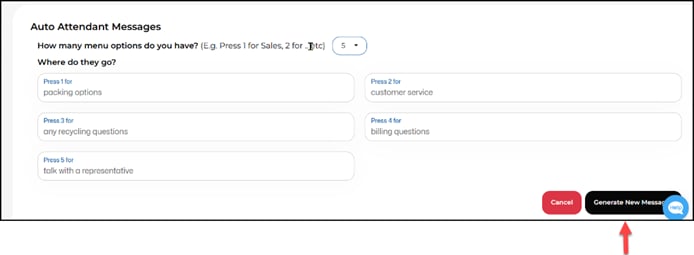
Select number of menu options and type script (system only allows for 6 at this time).
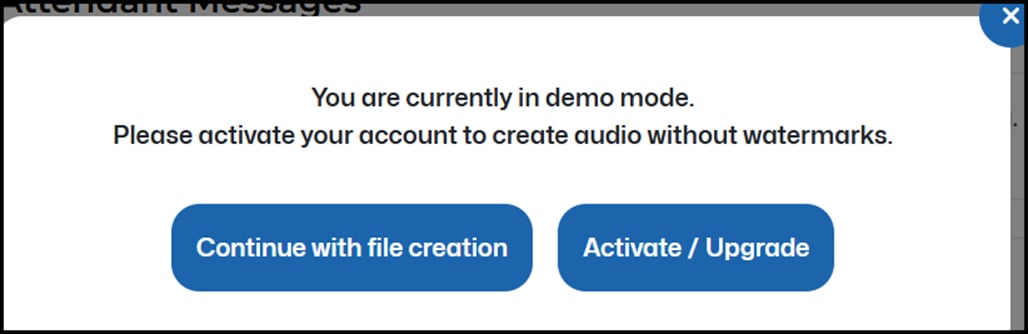
If you are in Demo Mode, you may be asked to upgrade your service..
Once completed, generate new message.
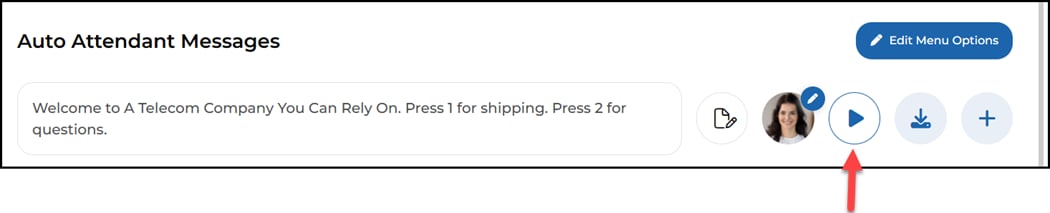
Preview file by selecting play button.
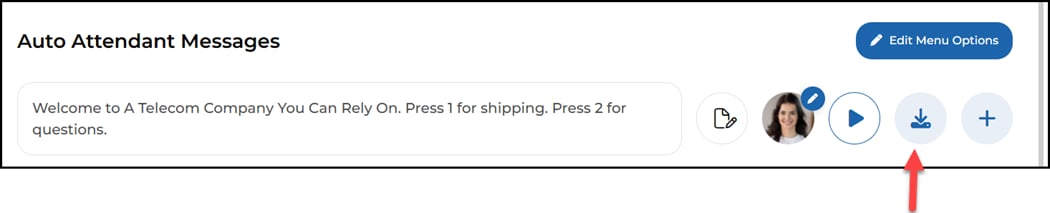
Download file
To Create the File
Select + Sign

Rename File and Create.
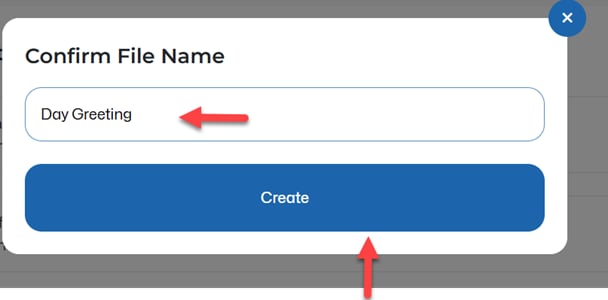
How to Add a Greeting to an Auto Attendant
From the manager portal, go to Auto Attendants. Select greeting to add new message.
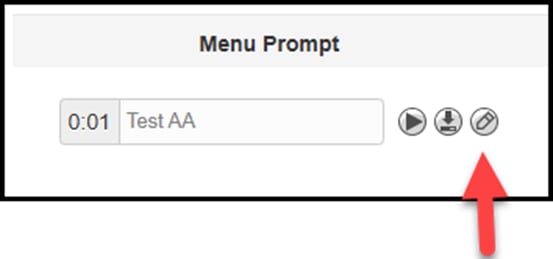
Select edit Icon.
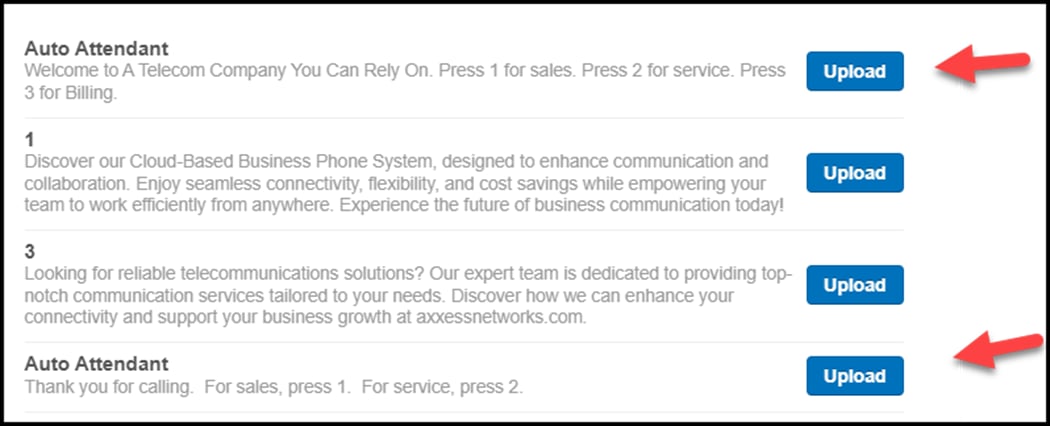
Choose the Auto Attendant to upload.
On-Hold & Queue Marketing Message
From the Dashboard, select On Hold & Marketing.
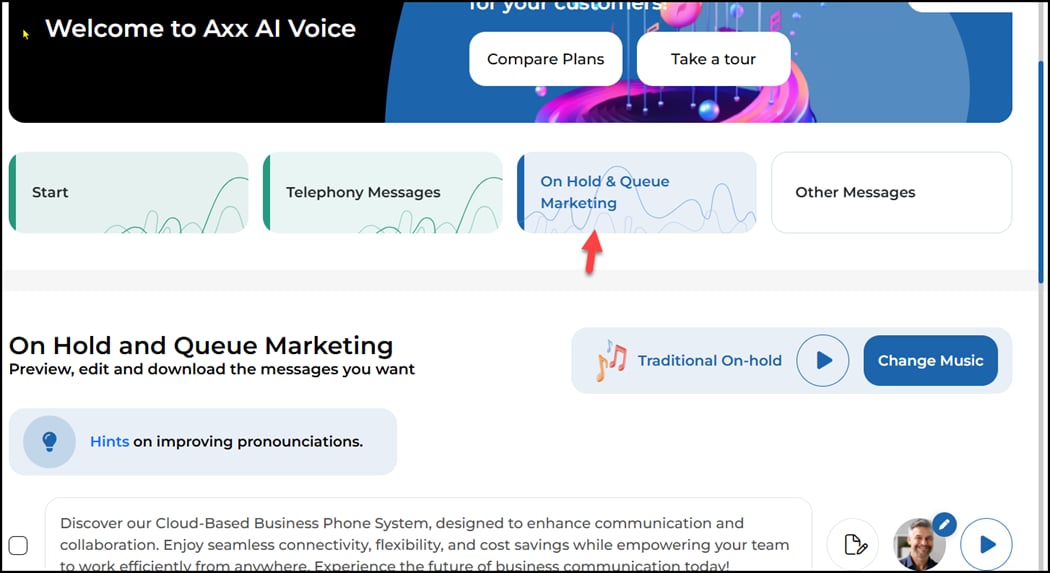
Play or change current music choice.

Review or edit sample on hold messages.
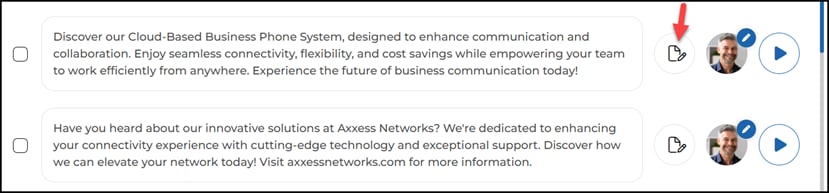
Once completed, select message.
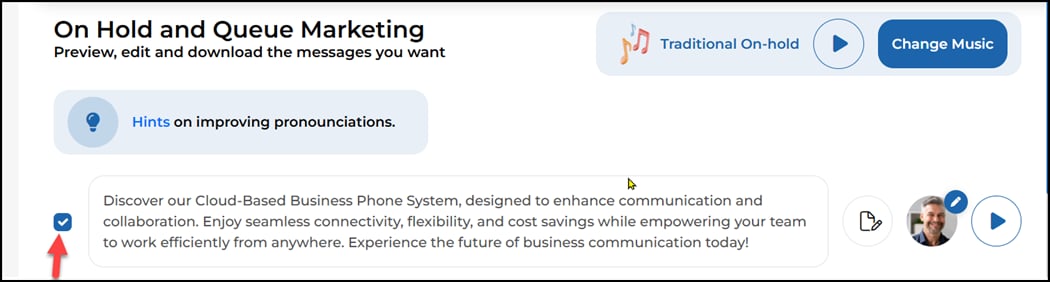
- Choose the initial wait time in seconds.
- Choose message spacing in seconds.
- Preview recording.

Create a Compilation
From the Menu on the left side of display, select On Hold & Queue.

Select add Compilation.

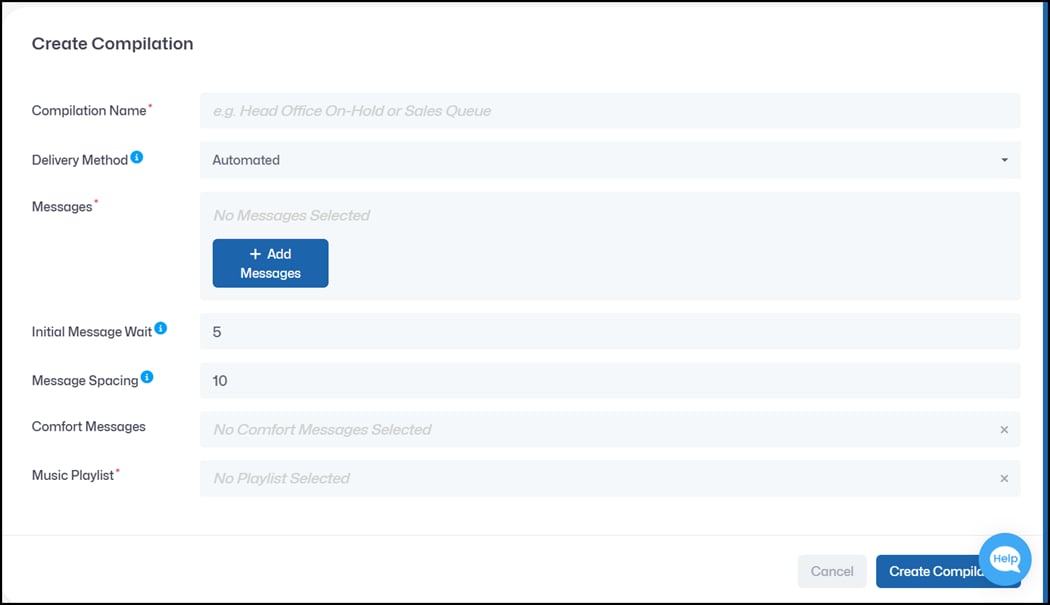
Complete form below.
- Add Compilation Name.
- Choose Delivery Method.
- Click add message.
- Create Compilation.
AxxAI Voice Features and Pricing
| Feature | Simply AI Included | Basic $19.95/mo | Standard $49.99/mo | Premium $349/mo |
Real Voice Recorded Messages |
$49/recording |
4 included |
12 included |
72 included |
AI Generated + Recorded Messages |
Unlimited |
Unlimited |
Unlimited |
Unlimited |
On Hold/Queue Messages per Compilation |
1 |
4 |
20 |
Unlimited |
Compilation Templates |
1 |
1 |
2 |
5 |
Music Library Access |
✅ | ✅ | ✅ | ✅ |
OnHold/Queue Updates |
Unlimited |
Unlimited |
Unlimited |
Unlimited |
Message Scheduling |
❌ | ❌ | ✅ | ✅ |
Marketing Message Library |
❌ | ❌ | ✅ | ✅ |
Voice Guarantee |
❌ | ❌ | ✅ | ✅ |