AxxFax Portal Login
How to send a fax using your Axxess Networks Portal
Open the following URL and login with your Login name and password, provided by your Administrator
- East Coast – https://portalphl.axxessnetwork
- West Coast –https://portalla.axxessnetworks.com

Fax Icon
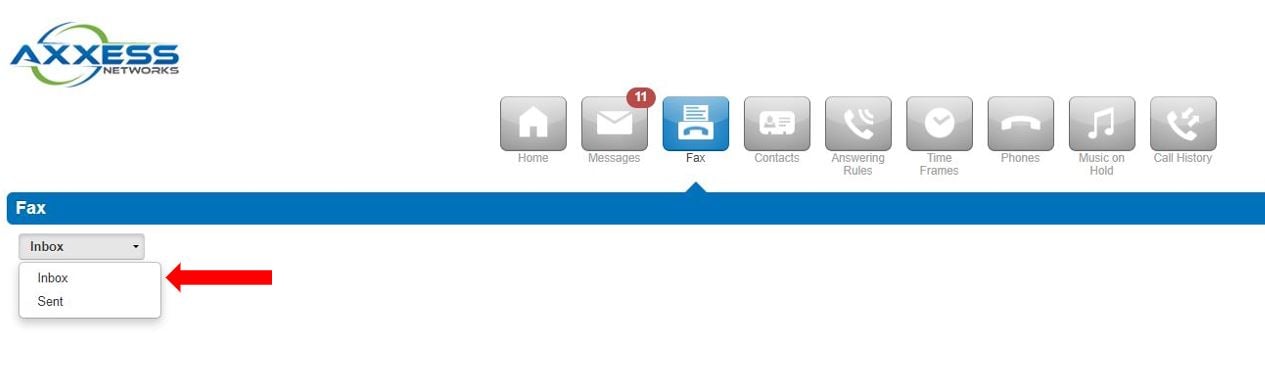
Click on Fax Icon as pictured below.

Sending a Fax
To Send a Fax, Click Send Fax Icon

If you are sending an attachment, click browse and search for document to attach. Add the Fax destination phone number
Check Cover Letter, if applicable

Cover Letter

Click Send after the required fields are filled

Review Outgoing Fax
To see your recently sent faxes, click the Inbox Icon and select Sent.
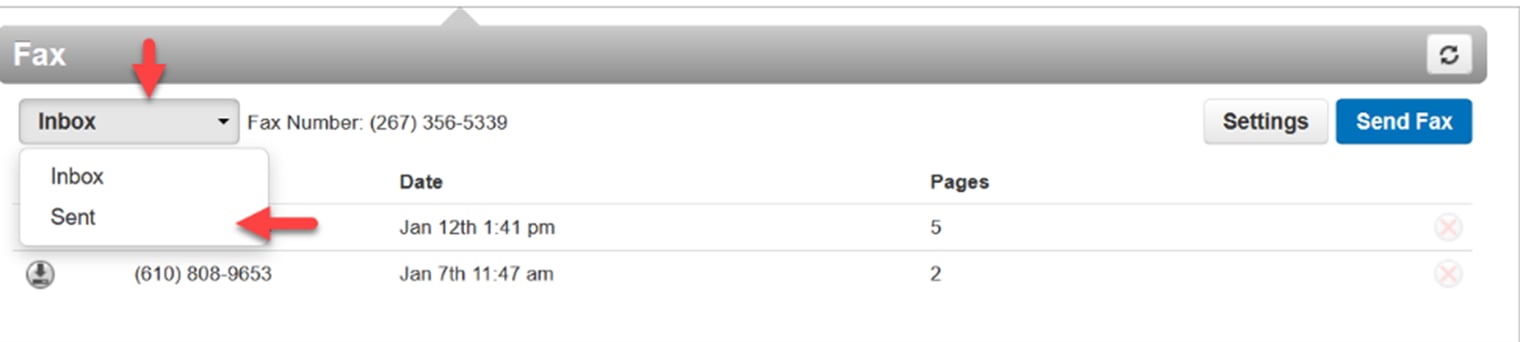
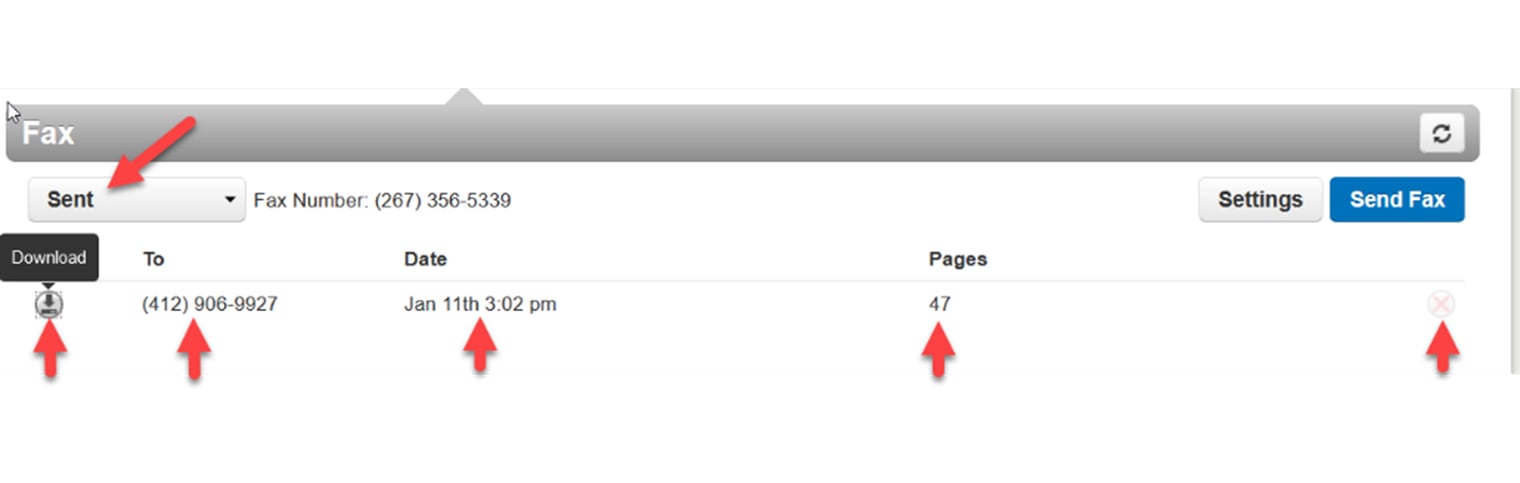
The Sent folder will show the fax number, date the fax was sent and the number of pages.
You will have the ability to download the fax and delete the fax from your Sent folder.
Emailing a Fax
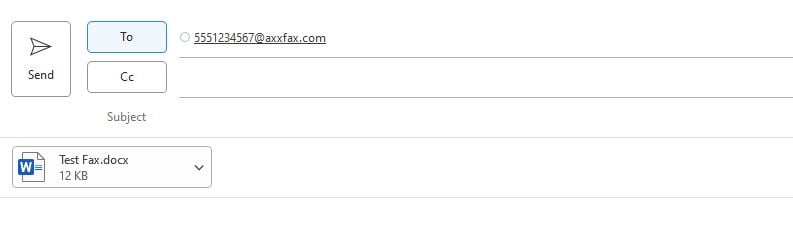
- Email (by sending an email to the faxnumber@axxfax.com, for example 2673565347@ axxfax.com)
Note
You will need your own EFax account to use the email option. Please send an email to support@axxessnetworks.com to have additional EFax email users added to your account. Additional charges may be applicable.
Incoming Faxes
To see your recently inbox faxes, click the Inbox Icon and select Sent.