AxxHD User Guide for IOS
Download Mobile App
From the app store, search for Axx HD in app store. Click Get/Install to download the mobile app. After the App has installed, click Open.

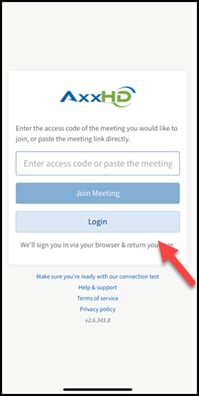
Select Login
Select Login.
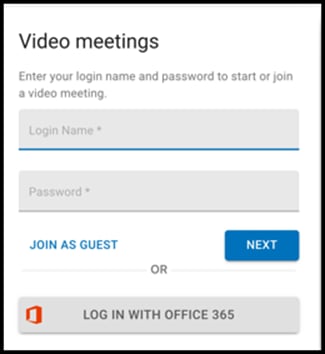
Then enter your portal login name and password, once you have filled in the required information, click next.
How to Start a New Meeting
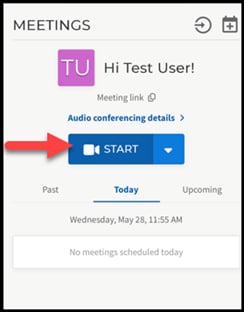
Click Start. This will start a brand new meeting in real time.
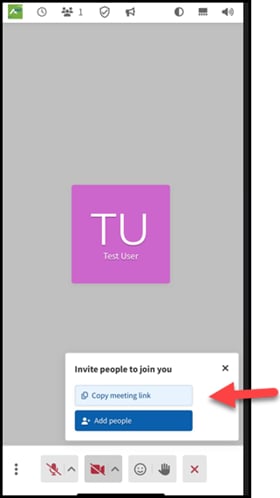
You can copy the meeting link or add people from your contact. Copy and share your conference details, (dial-in number, access code, and your meeting link)
In Meeting Options
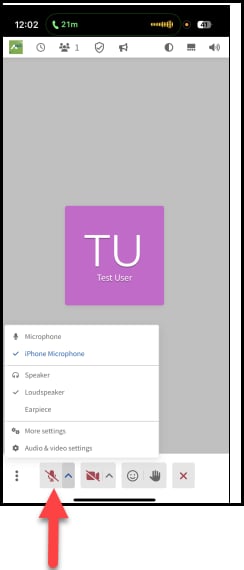
Audio Settings
Set your audio preferences by clicking the caret icon to the right of the Microphone button.
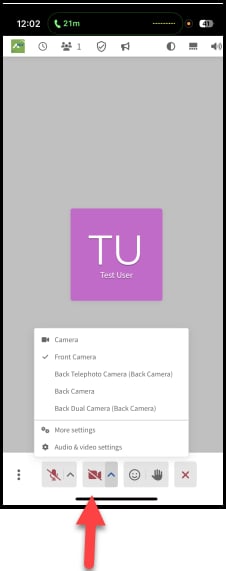
Camera Settings
Set your camera preferences by clicking the caret icon to the right of the Camera button.
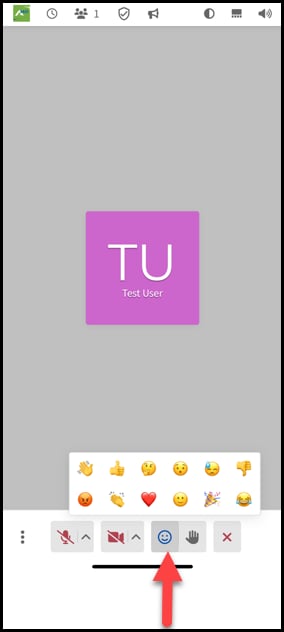
Emojis
Send emojis to express how you are feeling.
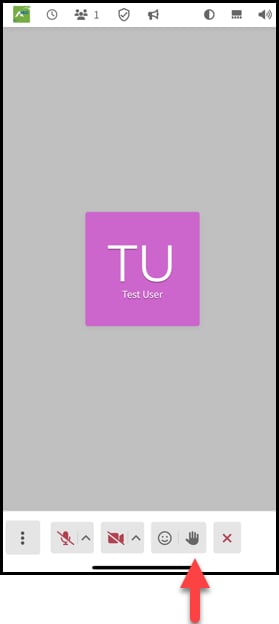
Raise Hand
Use the Raise Hand icon if you would like to ask a question or speak without interrupting another meeting member.
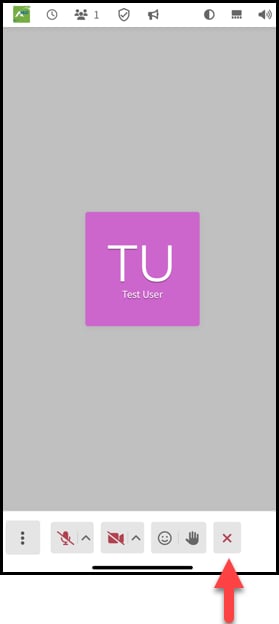
Leave/End Meeting
To leave/end the meeting, click the X icon in the bottom right corner.
Schedule a Meeting
To schedule a meeting for a later date follow the steps below:
Click Schedule Icon. This icon looks like a plus sign inside of a calendar.

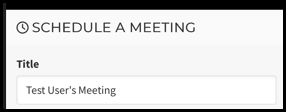
- Enter a Title for your Meeting
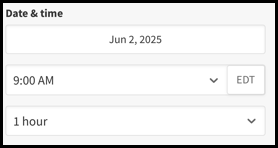
- Choose Date, Time and Duration
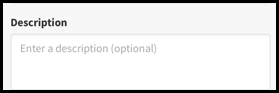
- Add a Description for your meeting
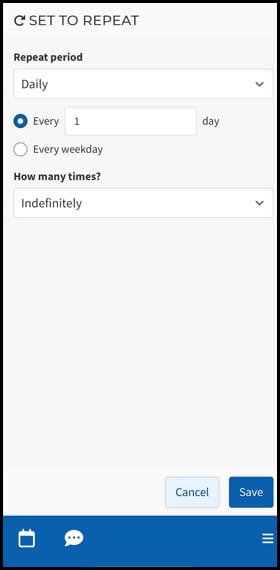
- Set to repeat option available
- Select timezone
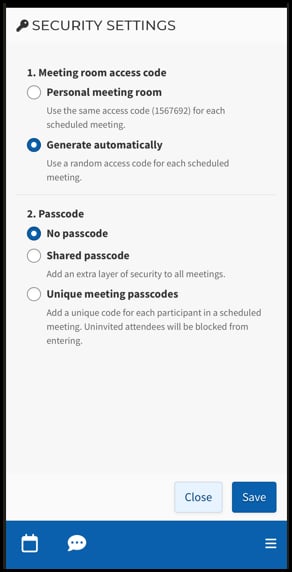
- Security settings
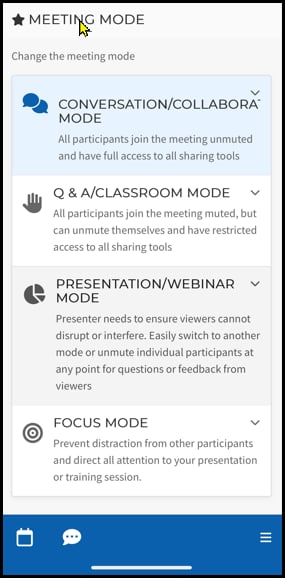
- Choose Meeting Mode
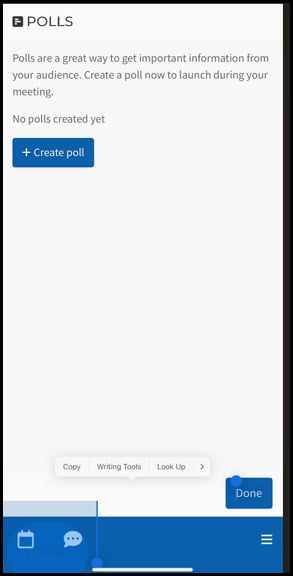
- Create a poll (optional)
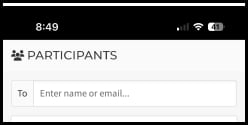
- Add participants
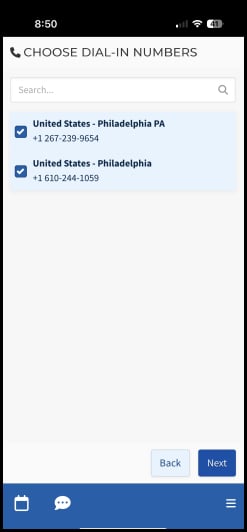
- Choose dial-in numbers
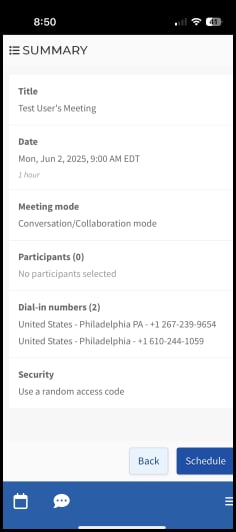
- Review summary. Click Schedule
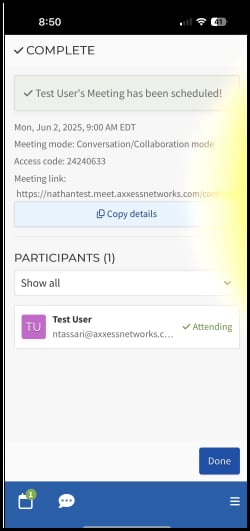
- Meeting has been scheduled

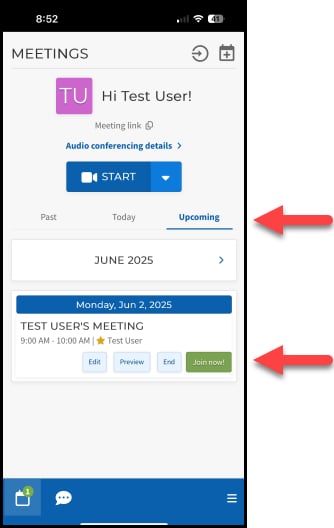
How to Join a Meeting from your Meeting Dashboard
Select today or upcoming. Click Join now to join the meeting.