
Download from the App Store
Unlock your phone
- Unlock your phone and make sure itʼs connected to the internet (Wi-Fi or mobile data).
Open the App Store
- Look for the blue App Store (
 ) on your home screen or in your App Library.
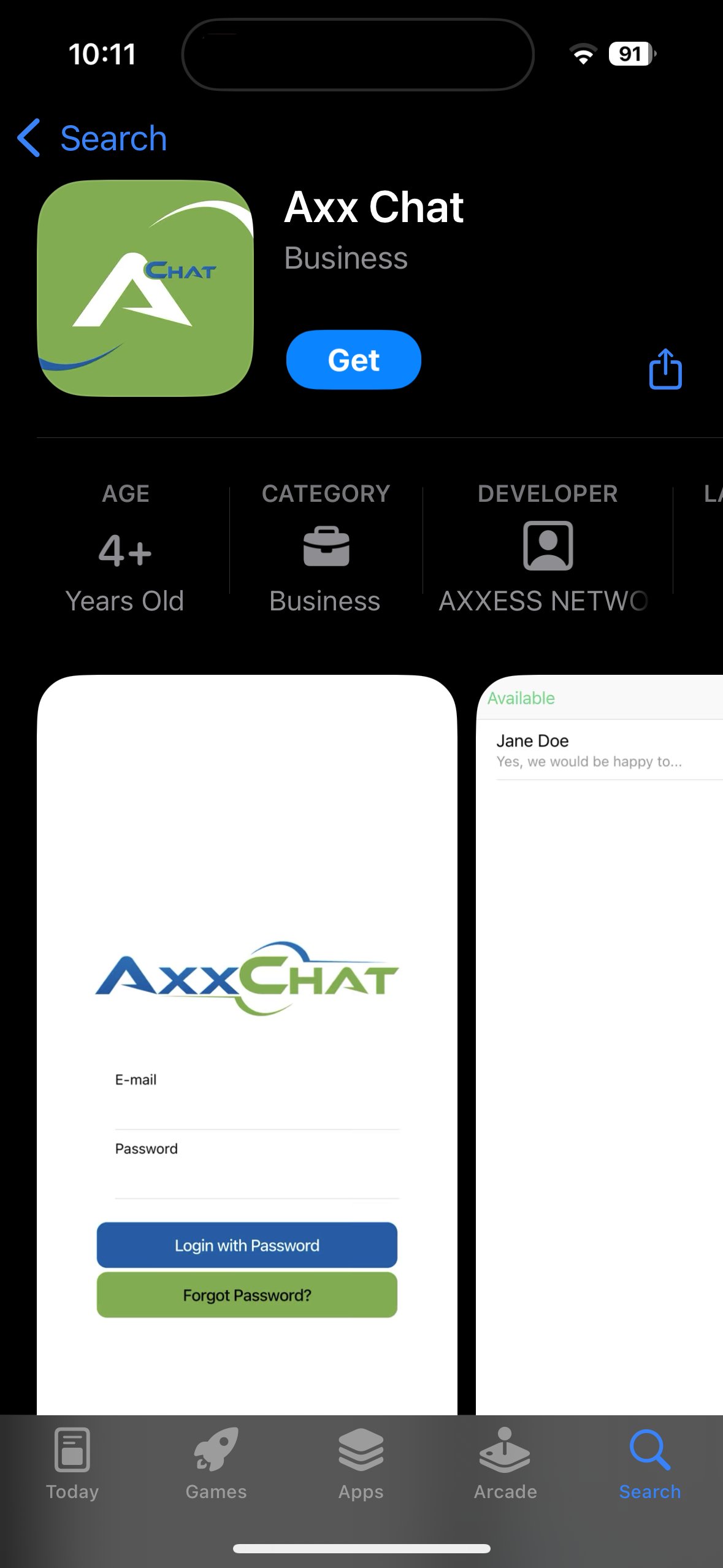
Search for the Axx Chat App
- Tap the search bar at the top.
- Type “Axx Chat” and press the search icon.
- In the search results, find Axx Chat.

Install the Axx Chat App
- Select the app and tap the blue Get button.
- Wait while the app downloads and installs on your device.
- Once installed, click the app icon.
Login Into Axx Chat
Find the Axx Chat App
- On your phoneʼs home screen or in your App Library, look for the Axx Chat icon.
Open the Axx Chat App
- Tap the Axx Chat icon to launch the app.
Go to the Sign-In Screen
- When the app opens, youʼll see the Sign In page.
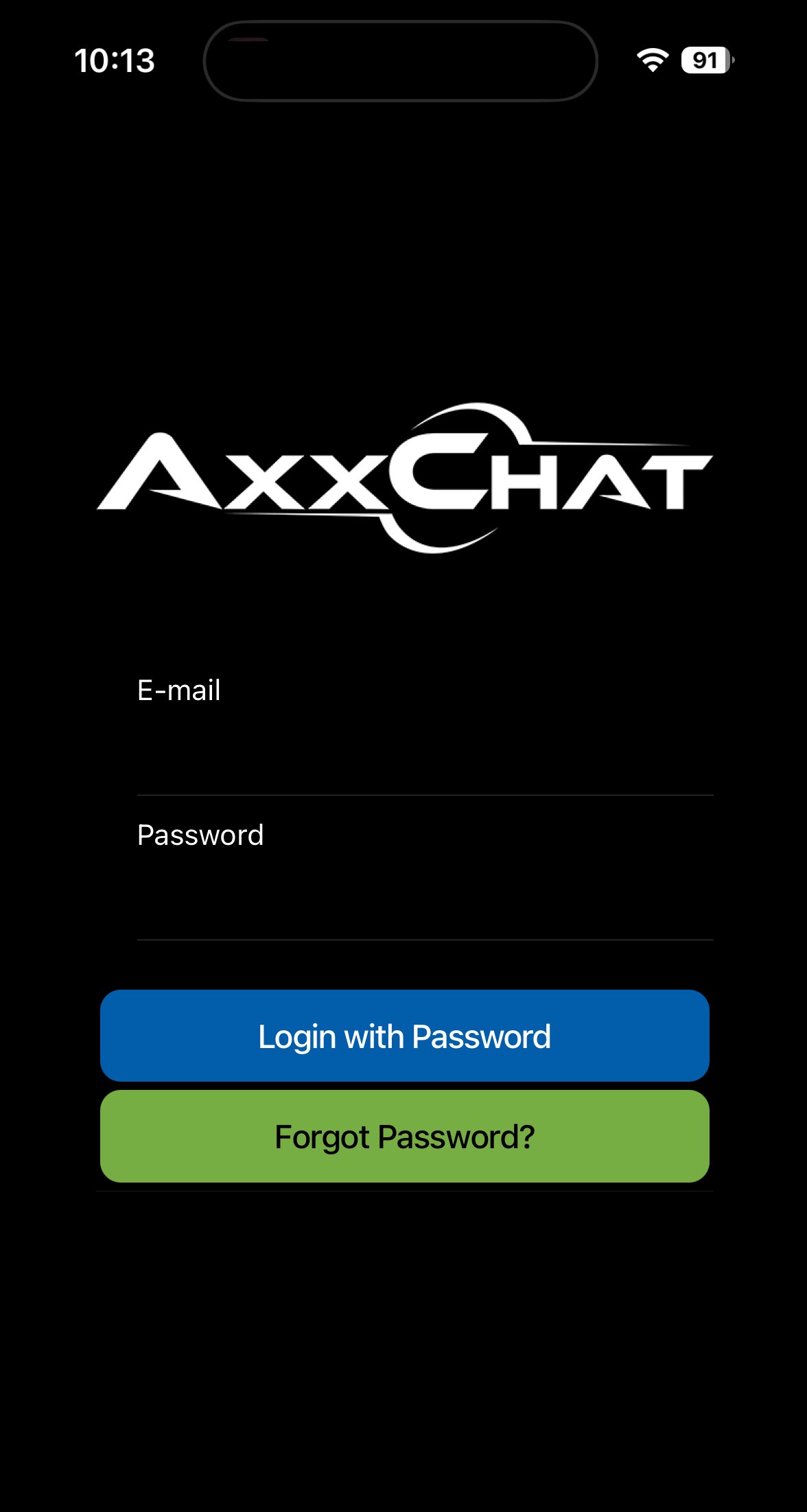
Enter Your Username or Email
Enter Your Password
- Tap on the Password field.
- Carefully enter your password.
Tap Sign In
Conversations
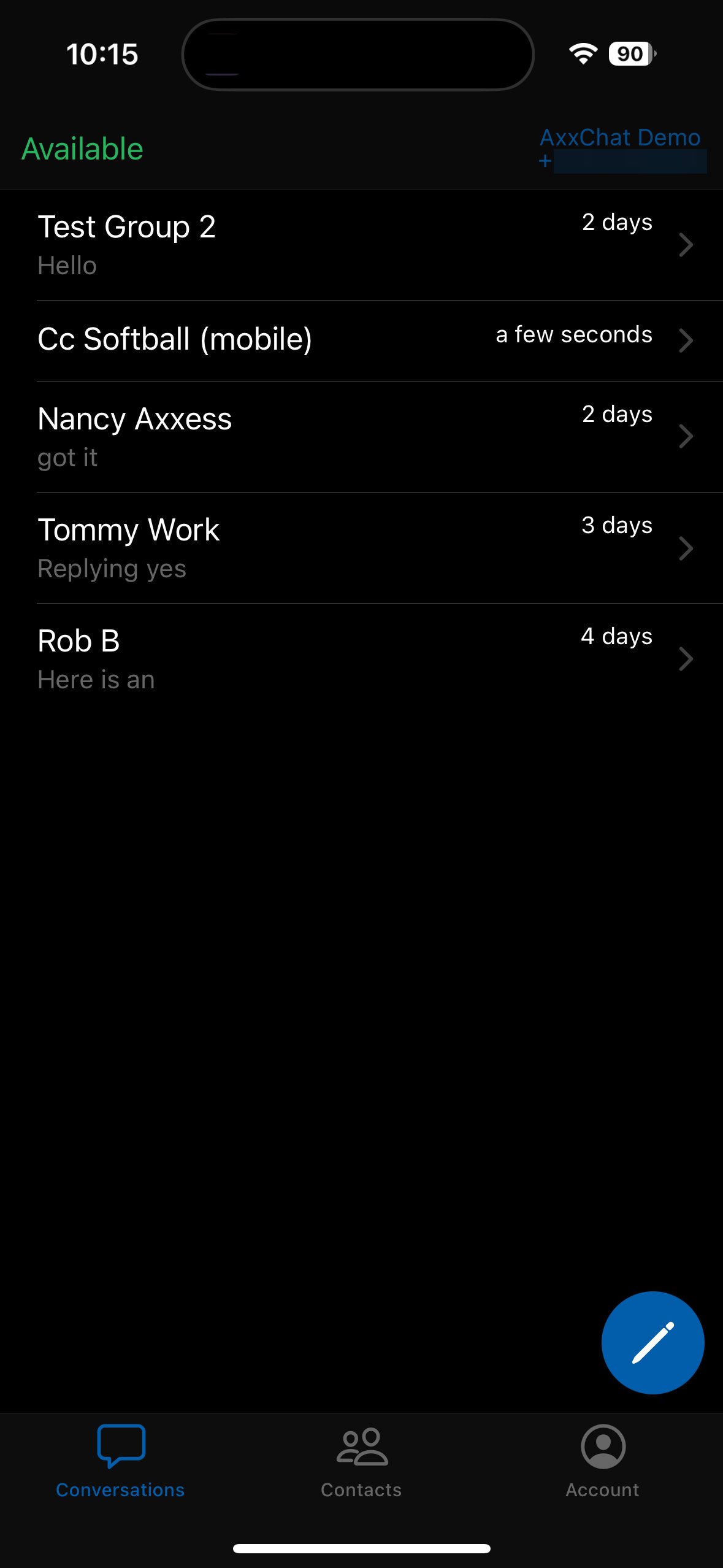
Once you have logged-in to Axx Chat you will, by default, be on the Conversations menu screen. Here you may continue existing message threads or create new message threads, otherwise know as, Conversations.
Create Conversations
To create a new Conversation, click the blue pencil icon ( ).
).

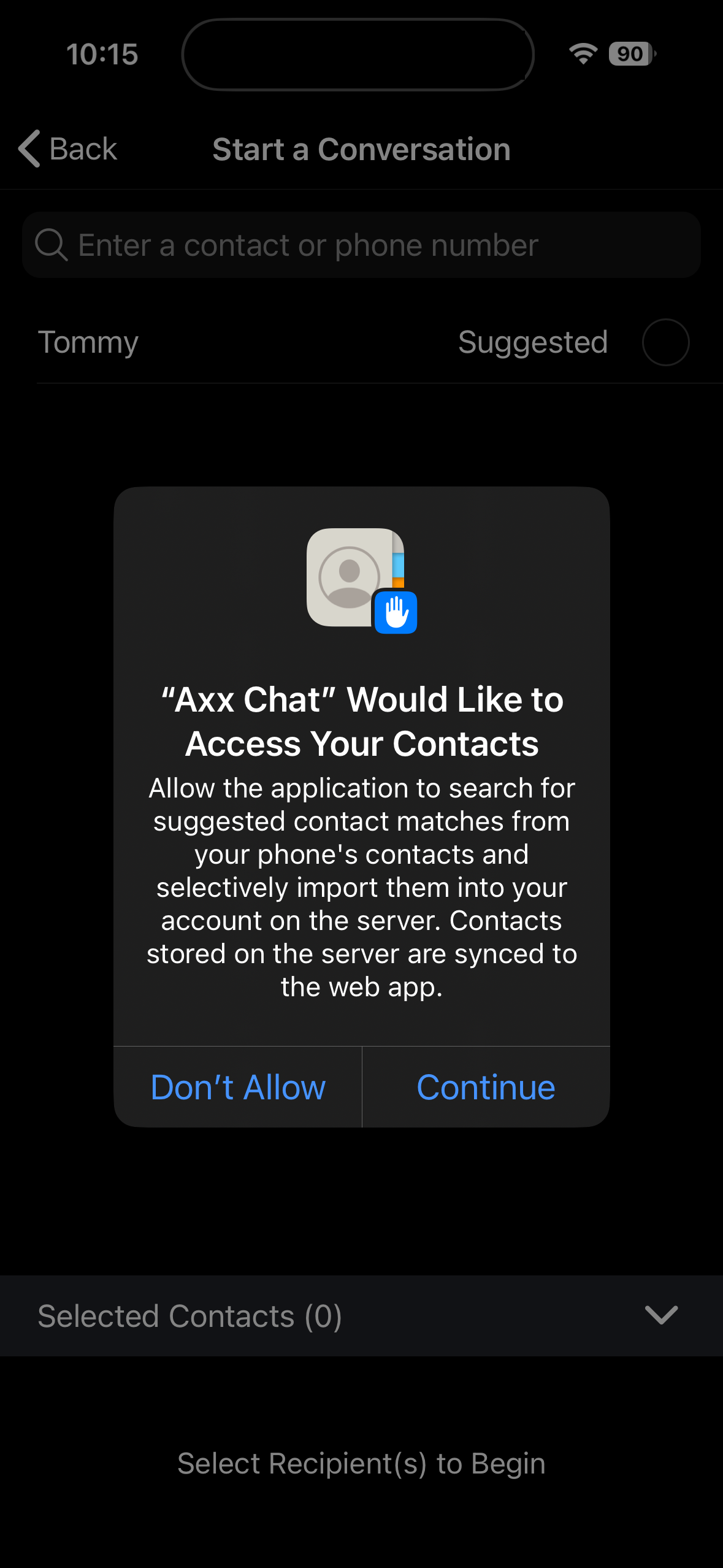
A Start a Conversation screen will appear, overtop the Conversations screen. Select one or more of your Contacts to initiate a conversation.
Note
The first time you attempt to Start a Conversation, you may be prompted to synchronize your phone contacts to AxxChat, as depicted in the image below.
Continue Conversations
To continue an existing conversation, single-click any conversations listed.

Archive/Delete Conversations
To archive or delete a conversation, simply swipe the conversation you intend to archive and/or delete to the left to reveal an Archive and Delete button.

Conversation Features
Within any conversation, new or existing, there are a handful of controls that you may use to enhance your user experience and the message content you choose to send.
| Control Visual | Function |
 |
Allows you to take a picture in real time and send in the conversation. |
 |
Allows you to select one or more pictures from your Photo Library and send in the conversation. |
 |
Allows you to select from your list of Canned Responses. Once a Canned Response is selected, its content will be pasted into the message field. |
 |
Allows you to add a note into the conversation that is ONLY visible to you and NOT visible to the contact you are communicating with. |
 |
Allows you to insert an existing message Signature or create a new message signature on the spot and insert's the text after your message content. |
Note
The first time you attempt to send an image in a conversation, you may be prompted if you would like to allow AxxChat to access your photos.
Contacts
The Contacts screen allows you to manage your contacts and contact information. Here you may search for contacts, edit existing contacts, create new contacts, start conversations with contacts, or delete contacts.

Start Conversation
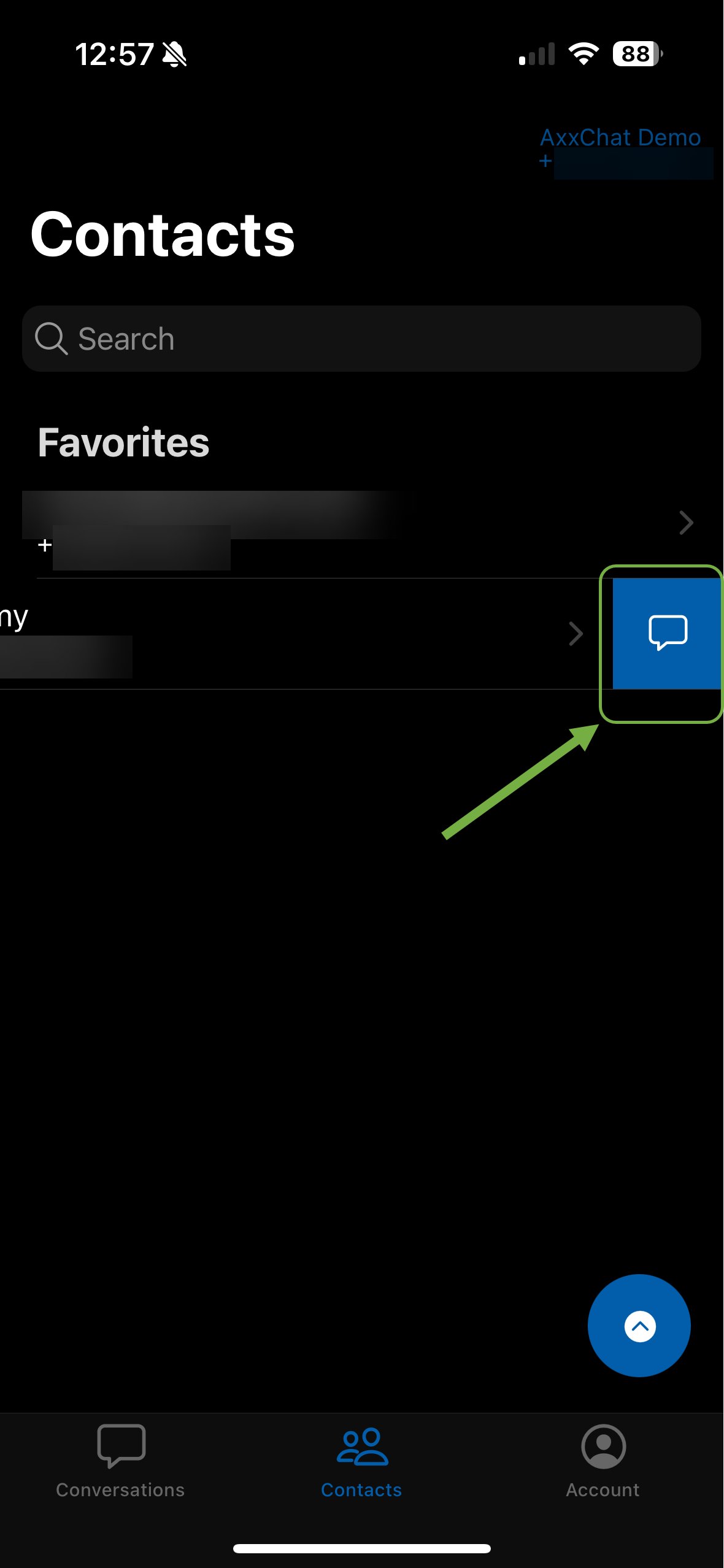
To start a conversation or jump into an existing conversation, identify the contact you would like to communicate with and swipe the contact to the left to reveal the conversation icon. Once you are ready, click the icon to jump into a conversation with the selected contact.
Add Contact
To add a contact to your Contacts list, click the blue arrow button ( )
)
Next, click the Plus icon to show the Add Contact screen.

Enter all known and relavent contact information into the labelled fields. Once completed, click Add Contact.

Edit Contact
To edit a contact, click once on the name of the contact you intend to modify. You may modify the contact's information as needed. Once you are finished editing the contact, click Update.

Delete Contact
To delete a contact, click once on the name of the contact you intend to delete. Once you are in the contact, there will be a trash icon. Clicking the trash icon, will show a delete contact confirmation message that confirms you would like to delete the contact.

Account
From the Account screen you can manage your Canned Responses and User Signature or Logout from the Axx Chat application.

Canned Responses
Canned Responses are messages that can be reused in conversations. From the Canned Responses screen you can add and edit canned responses.
Add Canned Response
To add a Canned Response click the Plus icon ( )
)

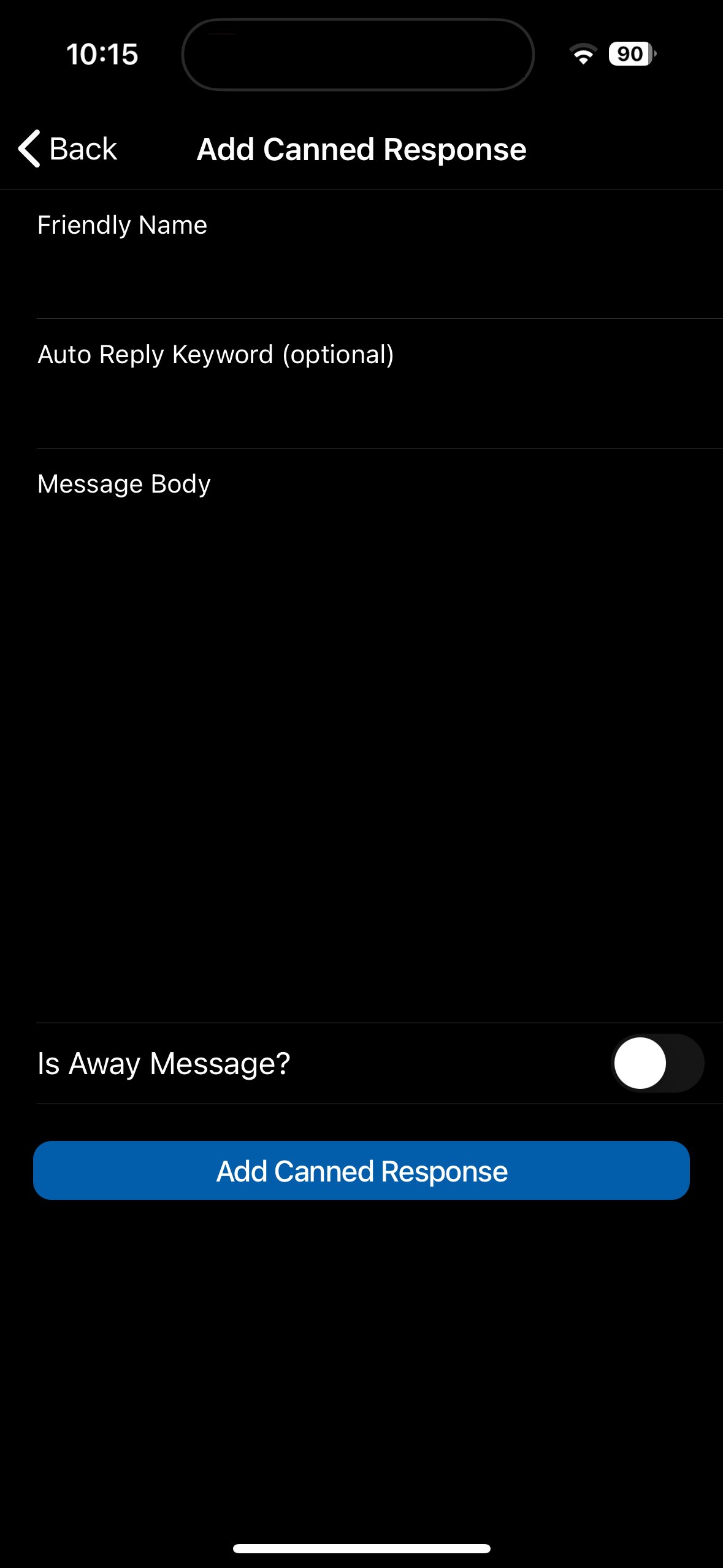
A blank Add Canned Response screen will show where you can add content to what will be a new canned response. Once you are done adding information to your response, click Add Canned Response.
Edit Canned Response
To edit an existing canned response, single-click on a reponse on the list. An Edit Canned Response screen should now be visible. Modify the response as needed and once you are ready, click Edit Canned Response to save your changes.

Sending Attachments
In a chat these are the available file types
Images - png, jpg, jpeg, gif
Videos - mp4
Audio - amr, wav, x-wav, mpeg, aac, flac, oog, mp3
User Signature
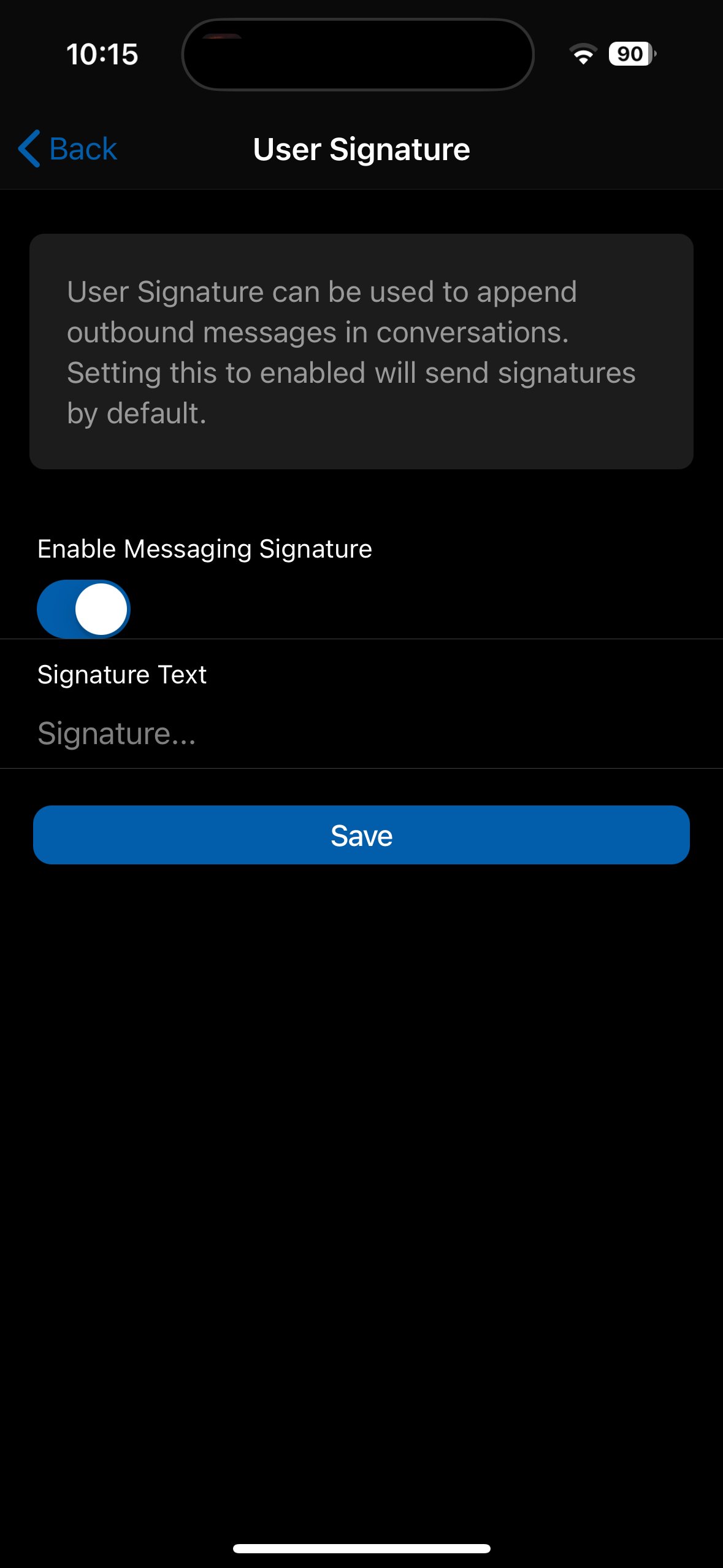
User Signatures are ending words, phrases, names, or titles that will append any message sent to a contact.
Enable User Signature
You must toggle the Enable Messaging Signature option ON to allow for this feature to execute appropriately. Then, enter text you would like appended to your messages in the Signature Text field.

Disable User Signature
To avoid messaging signatures from being sent, you must toggle the Enable Messaging Signature option OFF.

Logout
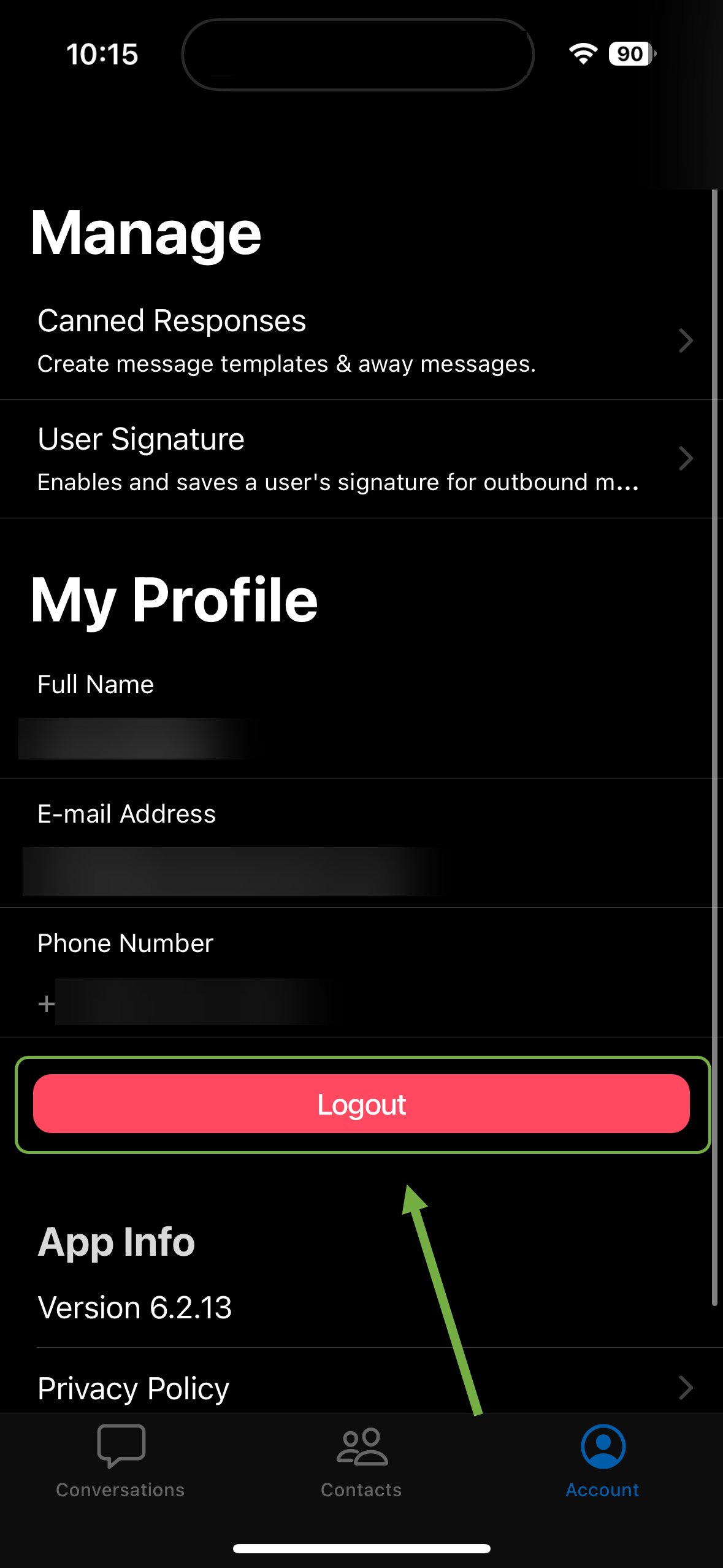
To logout of Axx Chat, click the Logout button.
Plans & Pricing
Plan |
Pricing |
Whats Included |
| Basic | $2.99 |
|
| Pro | $6.99 |
|
Note!
Messages can be shared across multiple users, with flexible add-on options. Additional messages start at just $0.01 Per credit, and volume pricing is available for high-usage businesses.