Axx Mobile iOS User Guide
A guide to setup and configure Axx Mobile on your iOS device
Download & Install
The first steps are downloading and installing the application
Locate and Install Axx Mobile
- Open the App Store on your iOS device.
- Search for AxxMobile and select the one by Axxess Networks (Should have this icon)

- Click on Get/Install and allow the program to download to your device.
- Once installer is complete; you can close the App Store and click on Axx Mobile app.
Logging into AxxMobile
You should now be at the login screen (as shown below).

Username & Password
Your username corresponds to your extension number, followed by the '@' symbol and your domain name (yourdomainname.com). Please note that this information will be provided to you separately.
Password is your extensionnumberAxxess (Example: 100Axxess@youdomainname.com)
Phone Permissions
You should now be able to login using your credentials and you should get a few confirmation screens informing you that the app needs permissions to "Access your contacts". You can hit "OK" on both screens to move forward.

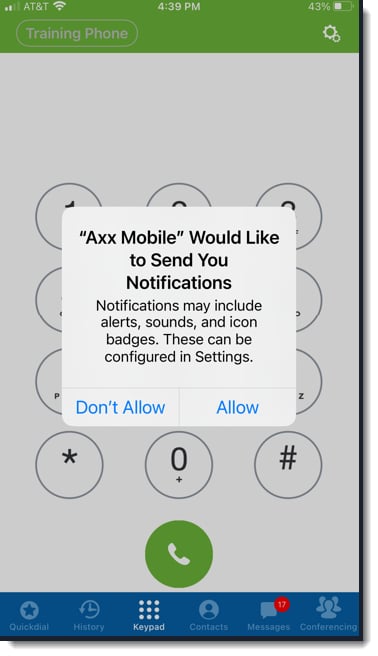
Remember!
Make sure to allow to notifications.
Quickdial Tab
Quickdials may be entered by the user from either the mobile app or web phone in the user portal.
Reminder
Your favorites in "Netsapiens" will automatically load first. Anything additional will be added manually after.
Add a Quickdial from the Axx Mobile App
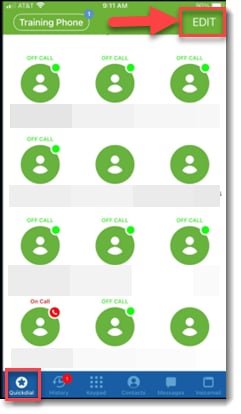
To add a Quickdial from the mobile app; click Edit (as shown below)
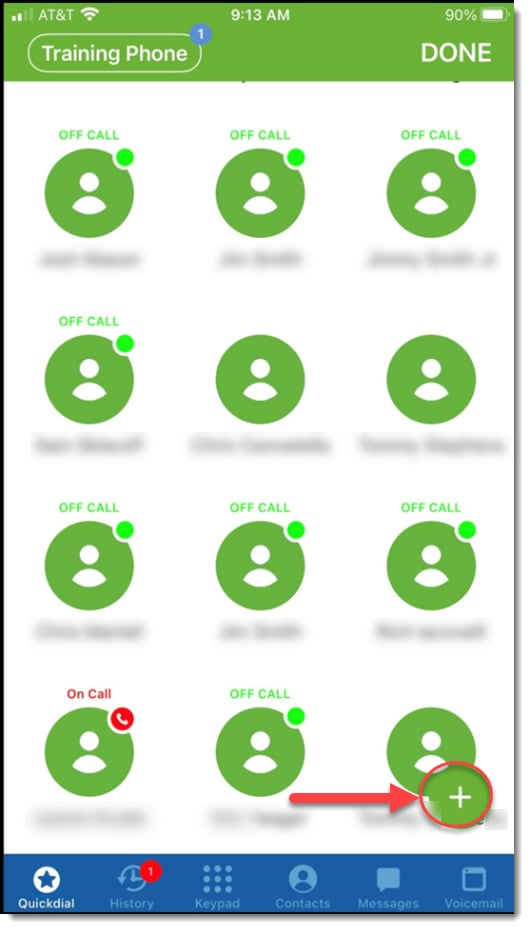
You can now click + (plus) button to add Quickdial (as shown below)
You should now be presented with the following screen:

| 1 📷 | Take, or use, a new profile picture for contact |
| 2 👤 | Add a Quickdial from your Contacts or Portal |
| 3 👤 | Contact picture |
| Title | Enter the title |
| Phone Number | Enter the phone number |
| Busy Lamp Field | Enable Busy Lamp field (if internal extension) |
When have added the necessary information; click on the Save button.
Choose the Address Book to add a Quickdial from your personal Contacts. Choose Web Service to add a Quickdial from the Portal. (As shown below)
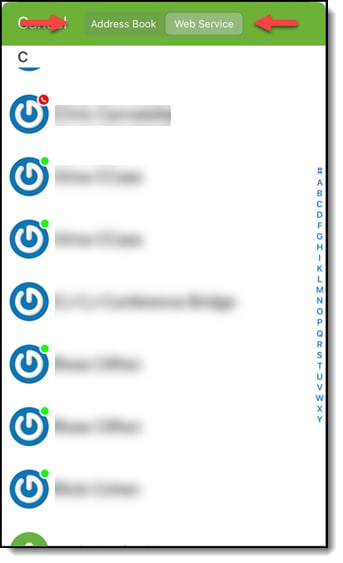
Once you choose the new Quickdial, Click the Save button.
History Tab
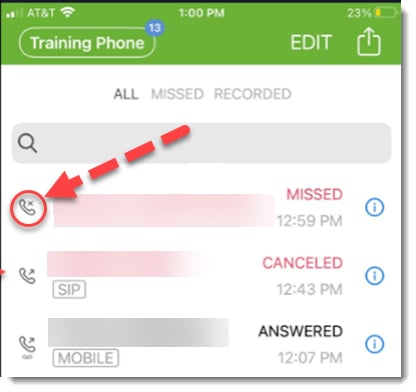
The History Tab allows you to view All Calls
Additional Call Information
To see additional Information about the call, press the Information Icon.

Example
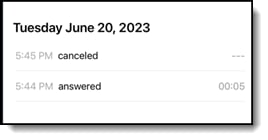
Press the Handset Symbol next to the call to redial.
Keypad Tab
Where you go to dial a number
Dialing a Phone/Extension Number
To make a call
Input a phone number or extension number and press the green handset to dial.
Example

Voicemail Box
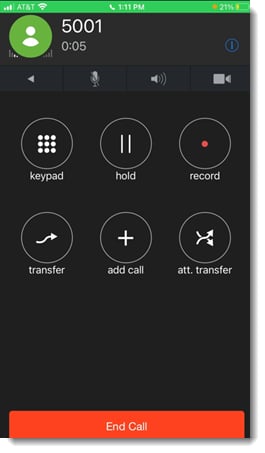
Press to Voicemail Box icon to connect to your voicemail (as shown below)

You will be prompted to enter your password and press the # key.
Settings
Configure various settings for Axx Mobile
Accessing Settings
From the Keypad Tab, press the Settings '⚙' Icon (Shown in example below)

Settings will allow you to change your Preferences.
WARNING!
Do NOT click on 'Reset Application'!

Do Not Disturb (DND)
Accessing Do Not Disturb
From the Keypad Tab, click your name on the top lefthand side of the display. Use the slider next to Do Not Disturb to enable and disable. (As shown below)

The "Training Phone" should have your name
The next screen will allow you to either Enable or Disable your DND settings.

Hit the 'Close' button when you are satisfied with your configuration.
Contact Tab
Walks you through using the Contact Tab
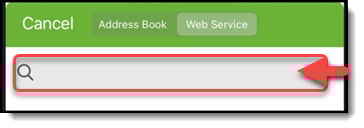
Search for a Contact
Click the search box to search for a contact
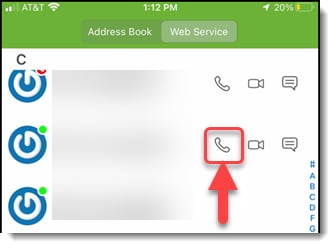
Dial from Contacts
Click the Phone icon to Dial the selected Contact
Send a message from Contacts

Click the message icon to send a message to the selected contact
After clicking the 'message' icon; you will get to the part where you can type your message.
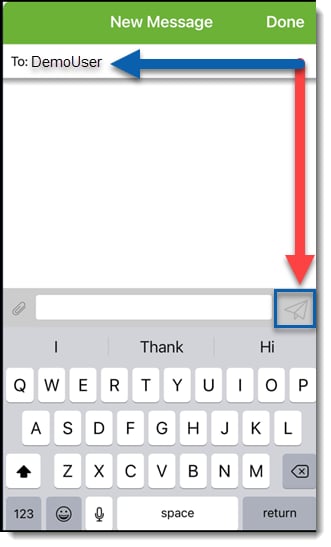
| Demo User | This is the Contact's name that you are currently messaging. |
| ✈ 'Paper Airplane' | Sends the message to 'Demo User' |
Messages Tab
Walks you through using the Messages Tab
Messages Tab
The Messages Tab allows a user to chat with other users and text If SMS is enabled.

Click to select contact's external number

Select 'Internal User'

Select 'New Message'
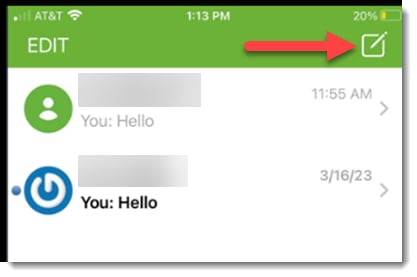
Select the contact that you want to send the message to and then type the message that you want to send.
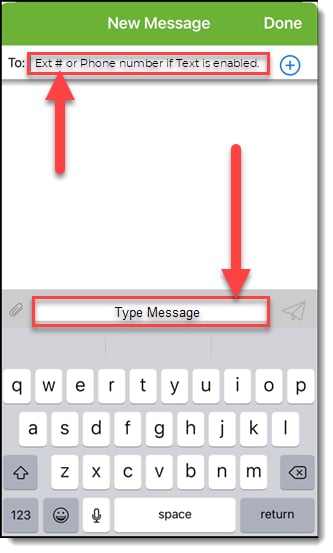
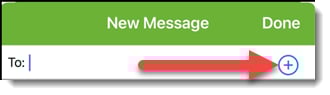
You can also select contacts by clicking the '+ plus' icon.

Voicemail Tab
Allows a user to manage their voicemail
The Voicemail Tab enables users to easily manage their voicemail messages by playing, forwarding, saving, and deleting them. Additionally, users can customize their settings to modify answering rules, record personalized greetings, and adjust voicemail notification preferences.
Accessing Voicemail
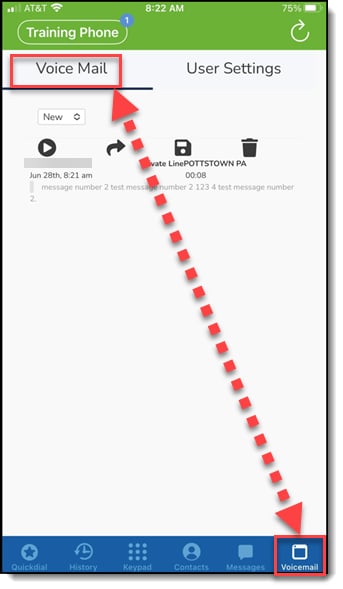
Click on the voicemail icon on the bottom right of the screen (as shown below)
 Play Play |
Plays voice messages |
 Forward Forward |
Forwards messages to another mailbox |
 Save Save |
Saves message to saved folder in mailbox |
 Delete Delete |
Deletes messages |
View Toggle
Click toggle to view new, saved, and deleted voicemails.


User Settings
Different user settings found in Axx Mobile
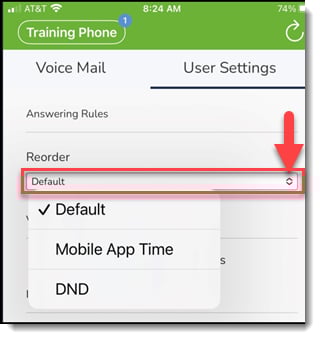
Answering Rules
Enable answering rules if multiple answering rules have been programmed.
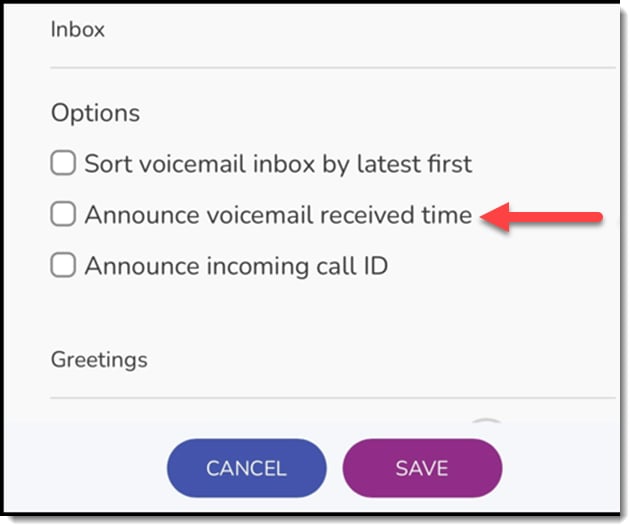
Inbox
Change inbound voicemail message options.
Record Greetings
First, click the speaker icon (as shown below)
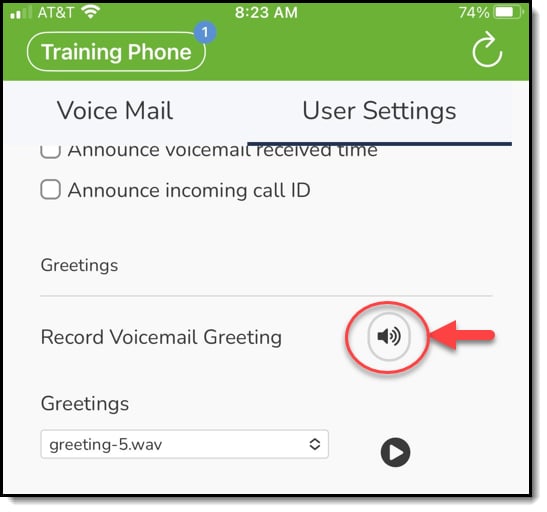
You should then arrive at the following screen:

When the device rings; answer call and follow the prompts to record and save.
Make sure to follow the prompts once the device rings.
Unified Messaging
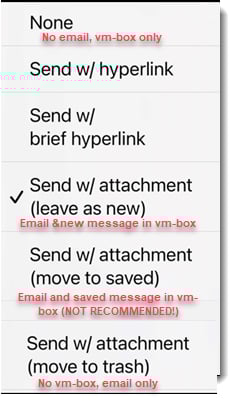
Change email notification settings
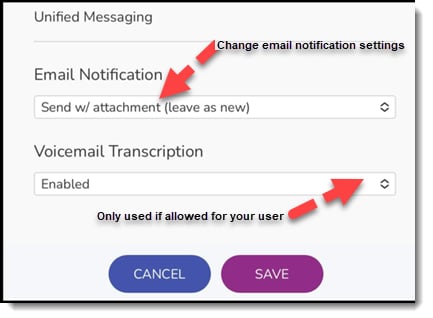
Most Used Notification Settings